How to Merge Scanned PDFs in the Right Order
You scanned a document one page at a time, or in a few batches, and now you have a folder full of PDFs. Merging them is easy. Getting them in the right order is where it goes wrong: page 10 lands before page 2, the back of a form ends up after the next form, or one batch gets added twice.
This guide covers the part that decides the order: how to name the files, how to check the list before merging, and how to fix a page that's out of place. We use docwhip's free Merge PDF and Split PDF tools, and we tested every step described here on 2 November 2026.
Step 1: Name the files so the intended order is easy to see
Most of the trouble starts with file names. A scanner or phone app often names files by date and time, or something like scan1.pdf, scan2.pdf, … scan10.pdf. When a list is sorted letter by letter, scan10 comes before scan2, because "1" comes before "2".
The fix is to give every number the same number of digits by adding leading zeros:
| Instead of | Use |
|---|---|
| scan1.pdf | 01-scan.pdf |
| scan2.pdf | 02-scan.pdf |
| scan10.pdf | 10-scan.pdf |
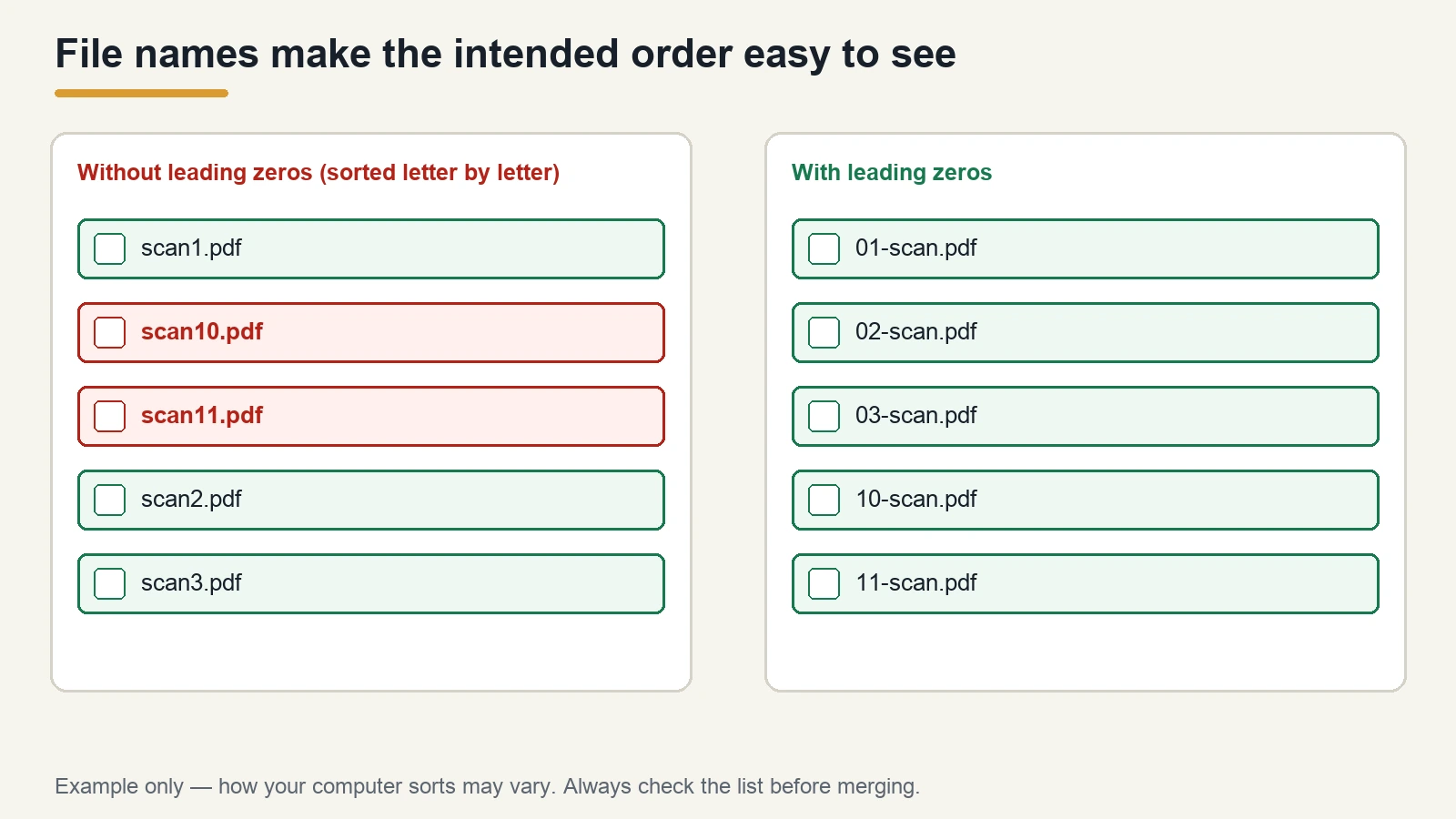
With two digits, a basic filename sort puts 02 before 10. If you have more than 99 files, use three digits (001, 002 …).
A naming pattern for multi-part scans
When you're putting several documents together, a short description after the number helps you spot mistakes at a glance. For example, a rental application might look like this:
01-application-form.pdf
02-id-front.pdf
03-id-back.pdf
04-payslip-august.pdf
05-payslip-september.pdf
06-bank-statement.pdf
The number records the intended order; the description lets you see straight away if 03-id-back is sitting in the wrong place. This is only an example: use whatever words make sense for your documents, but keep the number at the front.
Double-sided pages
If you scanned the fronts of a stack and then the backs, number them in reading order, not in scanning order: 01-page1-front, 02-page1-back, 03-page2-front and so on. It takes a minute longer and saves you from a merged file where all the backs come at the end.
Step 2: Add the files and check the list
Open docwhip Merge PDF and add your files, either by clicking the upload area or dragging them onto it. Here's what we found when we tested the tool:
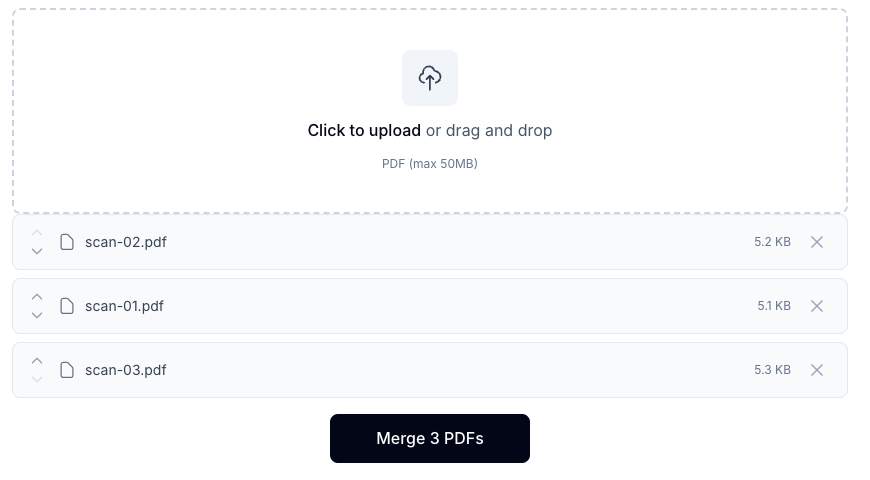
- The list keeps the order the files arrive in. The tool does not sort them by name. When we added
scan-03,scan-01andscan-02in that order, the list showed them in that order. - Files you add later go to the bottom. Adding
scan-04afterwards put it at the end of the list. - The merged PDF follows the list from top to bottom. Our merged test file came out in exactly the order shown.
We only tested how the tool treats the files it receives, not the order your computer hands over a batch you select together, so always read the list before you merge, even if you named everything carefully. If something is in the wrong place, the arrows fix it.
Moving a file up or down
Each file in the list has an up arrow and a down arrow. One click swaps the file with its neighbour. There's no drag-to-reorder inside the list, so for a file that's far out of place it can be quicker to remove it (the × button) and add it again; it'll go to the bottom of the list.
Limits
- Up to 20 files at once. When we added 21 files, the list kept the first 20, and the button read "Merge 20 PDFs". If you have more, merge in groups of up to 20 and then merge the results.
- Up to 50 MB per file. A file over the limit is turned away with a message ("file exceeds 50MB limit"); the other files in the same batch are still added. If a scan is too big, our guide to why PDFs get so large explains why scans are heavy and what you can do.
- At least 2 files. The Merge button only appears once there are two or more files in the list.
When the list is right, click Merge and download the result. The file is saved as merged.pdf, so rename it to something you'll recognise.
Step 3: Fix a page that's out of order inside one PDF
Sometimes the problem isn't the file order but a page inside a file: for example, a batch where you fed one sheet in the wrong place. The merge tool works on whole files, so you can't move a single page with it alone. You can with the split tool:
- Open docwhip Split PDF, add the PDF and choose All pages. Every page becomes its own PDF, downloaded as a ZIP file.
- Unzip it. In our test, a 4-page PDF came out as
page_1.pdf,page_2.pdf,page_3.pdfandpage_4.pdf. - Add the pages back into Merge PDF in the order you want, check the list, and merge.
Notice that those file names don't have leading zeros. For a document of 10 pages or more, page_10.pdf may sort before page_2.pdf, the same problem as in Step 1. Check the list carefully, or rename the files with two digits before adding them.
If you only need to pull out a few pages, see our guide to extracting specific pages from a PDF.
Step 4: Check the merged file before you send it
Open the merged PDF and look at it page by page, not just the first and last page:
- Count the pages. It should equal the total of all the files you added. A missing or doubled batch is easy to spot this way.
- Check the joins. Look at the last page of each original file and the first page of the next one.
- Check double-sided documents. Make sure each back follows its front.
What the merge keeps and what it doesn't
According to the Merge PDF page, pages "are copied into the new file as they are" and nothing is re-compressed, so the merged file is about the size of the originals added together. The page also notes that "bookmarks, fillable form fields or digital signatures, may not survive in the merged file", so keep your originals if they contain any of those. Password-protected PDFs may not merge correctly; the tool asks you to remove the protection in your PDF reader first.
The tool page also says merging "happens entirely in your browser" and files "are never uploaded to our server". That matters when your scans are ID cards, bank statements or payslips.
If you're on a Mac
macOS has its own way to combine PDFs in the Preview app. We cover it, and when to use the browser instead, in how to merge PDFs on Mac.
FAQ
How do I merge scanned PDFs in the right order?
Rename the files with leading zeros (01, 02 … 10) so the intended order is easy to see. Add them to a merge tool, check the list from top to bottom, and use its move controls if needed. In docwhip's Merge PDF tool, there is no drag-to-reorder; the up and down arrows change the list order, and the merged PDF follows that list.
Can I drag files to reorder them?
Not in docwhip's Merge PDF list. Each file has up and down arrows that move it one place at a time. You can also remove a file and add it again to send it to the bottom.
Does the merge tool sort files by name?
No. In our test, files stayed in the order they were added, and later files went to the end of the list. Always check the order before merging.
How many PDFs can I merge at once?
Up to 20 files, each up to 50 MB. For more files, merge them in groups and then merge the groups.
How do I move one page inside a scanned PDF?
Split the PDF into single pages with Split PDF (All pages), then merge the pages back in the order you want. Watch the file names: they come out as page_1, page_2 and so on, without leading zeros.
Sources
Related posts
What Makes a PDF File So Large? We Took One Apart
One phone photo turned our 64.7 KB report into a 29.9 MB PDF, past Gmail's 25 MB limit. What's inside a large PDF, and how to make it fit an email.
PDF TipsHow to Convert PDF to Word and Keep Tables Intact
Why tables fall apart when you turn a PDF into a Word document, which PDFs convert well, and how to repair a broken table in a few minutes.
PDF TipsHow to Convert Word to PDF Without Losing Formatting
Why Word documents change when saved as PDF (mostly fonts and complex layouts), plus the Word settings and checks that keep your PDF looking like the original.