What Makes a PDF File So Large? We Took One Apart
You try to email a PDF and it bounces back: the attachment is too big. The document is only a few pages long. How can it be 30 MB?
We wanted a real answer rather than a list of guesses, so we built a few PDFs ourselves and took them apart, object by object, to see what was taking up the space. The short version: it's almost always the pictures. But how the pictures got in there matters more than you'd think.
The email limits you're up against
First, the numbers you need to get under, from the providers' own help pages:
- Gmail: "For personal Gmail accounts, the limit is 25 MB." For work and school accounts, the Google Workspace administrator sets the limits. If your attachments go over the limit, Gmail says it "automatically removes the attachment and adds it as a Google Drive link in the email."
- Outlook: Microsoft says that "for internet email accounts such as Outlook.com or Gmail, the email size limit is 20 megabytes (MB)," and "for Exchange accounts (business email), the default email size limit is 10 MB." It adds that the limit "includes both the size of the attachment and the size of the email."
So a PDF of around 20 MB or more may not go through from Outlook, and a business Exchange account may stop at 10 MB by default.
Our test files
We made a three-page A4 report: headings, running text and a small table on each page, in two common fonts (Georgia for the body, Helvetica Neue for headings). We saved it as a PDF from Google Chrome (version 156) using Print > Save as PDF. Then we made versions with a photo and versions that imitate a scan.
To see what was inside, we used the free Python library pypdf to add up the size of every object in each file by type: images, embedded fonts, page content (the instructions that place text and lines on the page), and everything else.
The text-only PDF: 64.7 KB
| Part | Size | Share |
|---|---|---|
| Embedded fonts | 30.9 KB | 48% |
| Page content (text and lines) | 6.7 KB | 10% |
| Structure and other data | 27.0 KB | 42% |
| Total | 64.7 KB |
(1 KB = 1,000 bytes here.)
Three pages of text came to under 65 KB. The biggest single part was the fonts, which is worth a closer look.
Fonts: smaller than you'd expect
A PDF carries its fonts with it so it looks the same on any computer. You might expect that to be expensive: the Georgia font file on our Mac is 379.6 KB. But the copy inside the PDF was only 17.7 KB.
That's because Chrome embedded a subset: only the characters the document actually uses. You can spot a subset in a PDF's font list by the six-letter prefix on the name; ours was listed as “BAAAAA+Georgia”. The three Helvetica Neue Bold subsets added another 13.2 KB.
Fonts can matter for very short documents, or when a file uses many fonts or a large font such as one for Chinese or Japanese. In a typical document they're a small part of the picture.
Add one photo: 64.7 KB becomes 29.9 MB
Next we added a single photo to page 2: a product shot taken on an iPhone 15 Pro, 5712 × 4284 pixels, a 4.05 MB JPEG straight from the phone. Nothing else changed.
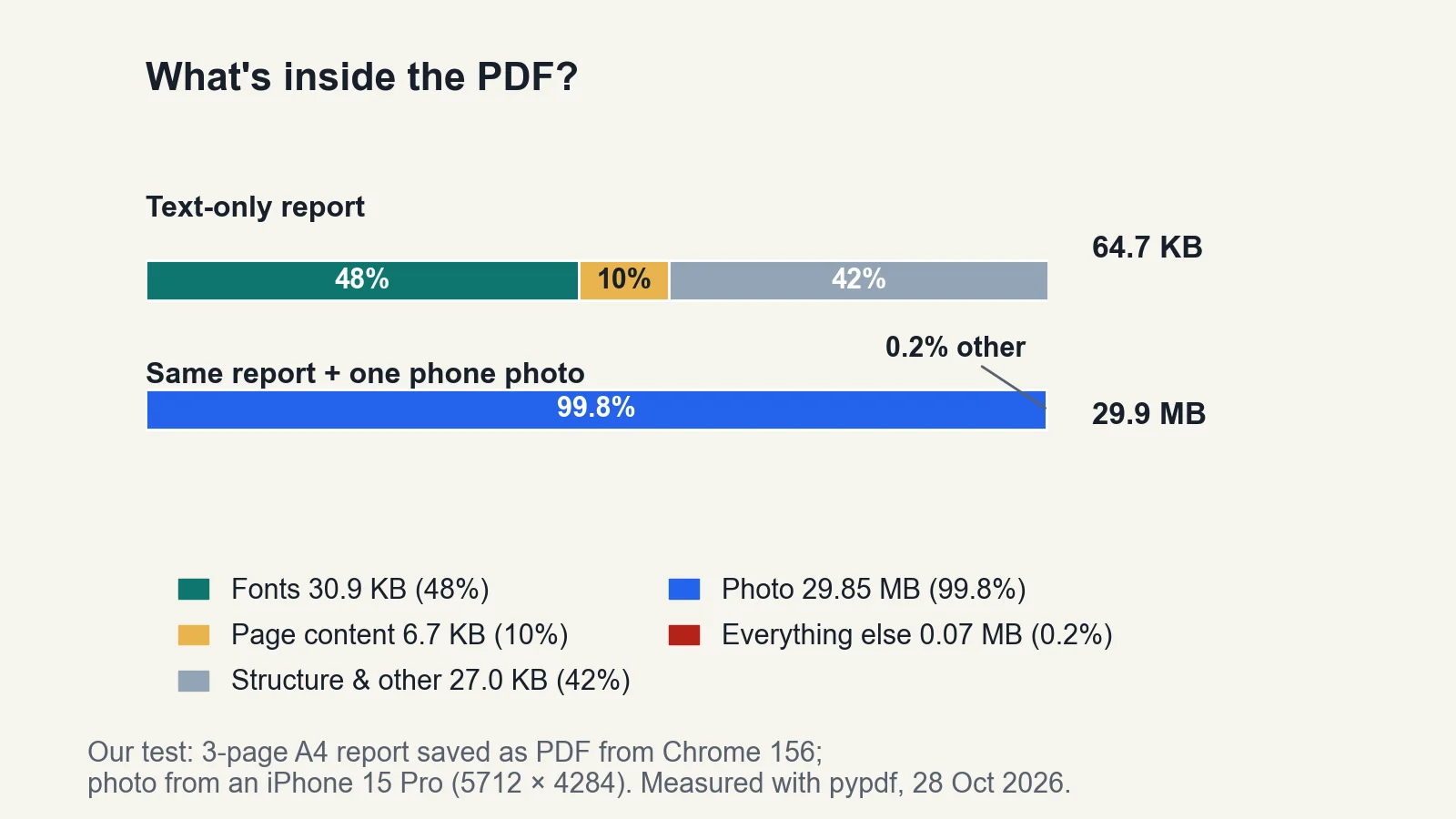
| Part | Size | Share |
|---|---|---|
| The photo | 29.85 MB | 99.8% |
| Everything else | 0.07 MB | 0.2% |
| Total | 29.92 MB |
A 4 MB photo became nearly 30 MB inside the PDF, more than seven times its original size, and enough to break both Gmail's and Outlook's limits on its own.
Why the photo grew
When we looked at how the image was stored, the answer was clear. The original was a JPEG, which is heavily compressed. Inside the PDF, Chrome had stored the decoded pixels with a lossless compression method (Flate), which is far less efficient for photos.
The trigger turned out to be the photo's rotation. Phones often save a photo sideways and add a tag telling apps to rotate it for display. Our photo had that tag. When we rotated the photo for real and saved it again (3.6 MB, no rotation tag), Chrome kept it as a JPEG and the whole PDF came to 3.67 MB.
That's how one version of Chrome behaved in our test. Other apps handle images differently. Microsoft Word, for example, compresses pictures by default: Microsoft says "the default picture resolution in Microsoft 365 is 220 ppi." The lesson that holds everywhere is simpler: check how big the PDF is after adding photos, not before.
Resize the photo first
We also tried the photo resized to 1200 × 1600 pixels (205 KB as a JPEG), which is still plenty for a photo printed half a page wide:
| Photo in the report | PDF size |
|---|---|
| Original from the phone (4.05 MB, rotation tag) | 29.92 MB |
| Rotated and re-saved (3.60 MB) | 3.67 MB |
| Resized to 1200 × 1600 (0.21 MB) | 0.27 MB |
Same report, same page, from 29.9 MB to 0.27 MB, just by what went in.
Scanned PDFs: every page is a picture
A scanned document is different. There's no text and no fonts, only an image of each page. So the scanner's resolution and colour mode decide almost everything.
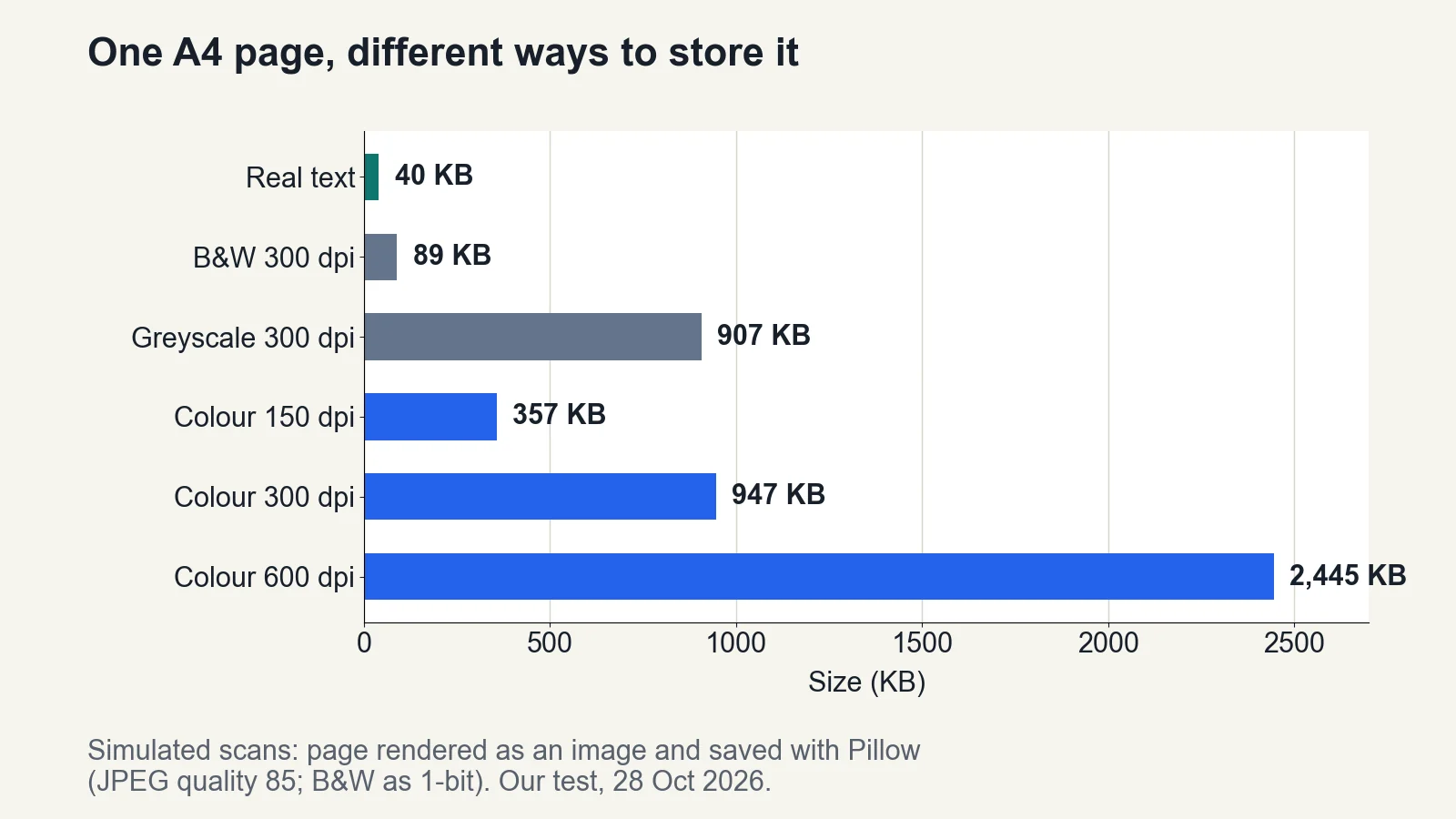
We imitated a scan by turning page 1 of our report into an image at different resolutions and saving each as a one-page PDF. (This is a simulation, not a real scanner, but it shows how the settings scale.)
| One page saved as | Size |
|---|---|
| Real text (from the original PDF) | 40 KB |
| "Scan", black and white, 300 dpi | 89 KB |
| "Scan", greyscale, 300 dpi | 907 KB |
| "Scan", colour, 150 dpi | 357 KB |
| "Scan", colour, 300 dpi | 947 KB |
| "Scan", colour, 600 dpi | 2,445 KB |
Two patterns stand out:
- Doubling the resolution multiplied the size by about 2.6. Each step from 150 to 300 to 600 dpi means four times as many pixels.
- Black and white was about a tenth of colour at the same 300 dpi (89 KB against 947 KB). Greyscale saved little here, because our page was black text on white anyway.
At 2.4 MB a page, ten pages like ours scanned in colour at 600 dpi would come to around 24 MB, close to Gmail's 25 MB limit. For text documents, 300 dpi in black and white or greyscale is usually enough to read, and far smaller.
How to get a PDF under the email limit
Start with whichever cause fits your file.
If the PDF has photos in it
- Resize photos before you insert them. A photo for a document rarely needs the full resolution from a phone camera.
- In Word, PowerPoint or Excel, select a picture and use Picture Format > Compress Pictures to reduce its resolution, as Microsoft describes.
- When saving as PDF from Office, Microsoft's instructions say to choose Minimum size (publishing online) "if file size is more important than print quality."
- Check the size after saving. As our test showed, the same photo can end up very different sizes depending on how it's stored.
If it's a scan
Rescan at a lower resolution or in black and white if the document is mostly text. You can't get detail back from a low-resolution scan, so keep the original if you might need it later.
If you can't change the file
- Split it. Our Split PDF tool can save a page range as a separate file, so you can send a large document in two or three emails. It copies pages without re-compressing them, so each part is simply a share of the original's size.
- Send a link instead. Gmail switches to a Google Drive link automatically when attachments are too big, and Microsoft suggests uploading the file to a cloud service such as OneDrive and sharing a link.
- Zipping rarely helps with PDFs. Microsoft notes that zipping a file "might decrease it enough to fit within the Outlook size limits". On our two photo PDFs, zipping saved less than 1%, because the image data was already compressed.
If the recipient needs everything in one file afterwards, they can join the parts with our Merge PDF tool. The merged file will be roughly the size of the parts added together. Both tools run in your browser, and your files aren't uploaded to our server.
FAQ
Why is my PDF so large when it's only a few pages?
Almost always because of images: photos inserted at full camera resolution, or pages that are scans. In our test, one phone photo made up 99.8% of a 29.9 MB PDF.
What is the PDF attachment limit for Gmail and Outlook?
Gmail's help page gives 25 MB for personal accounts. Microsoft gives 20 MB for internet accounts such as Outlook.com, and a default of 10 MB for Exchange business accounts, including the email itself.
Do fonts make a PDF big?
Usually not much. Our three-page report embedded 30.9 KB of fonts, because only the characters used were included.
What resolution should I scan documents at?
For text, 300 dpi in black and white or greyscale is usually enough. In our test, a colour page at 600 dpi was 2.4 MB, against 89 KB in black and white at 300 dpi.
Can I reduce a PDF's size without extra software?
Often, yes: resize photos before inserting them, use Compress Pictures and "Minimum size" when saving from Office, rescan at lower settings, or split the file into parts.
Sources
| Source | URL | Checked |
|---|---|---|
| Gmail Help, Send attachments with your Gmail message | https://support.google.com/mail/answer/6584 | 20261028 |
| Microsoft Support, Reduce attachment size to send large files with Outlook | https://support.microsoft.com/en-us/office/send-large-files-with-outlook-8c698842-b462-4a4c-8d53-5c5dd04f77ef | 20261028 |
| Microsoft Support, Save or convert to PDF or XPS in Office desktop apps | https://support.microsoft.com/en-us/office/save-or-convert-to-pdf-or-xps-in-office-desktop-apps-d85416c5-7d77-4fd6-a216-6f4bf7c7c110 | 20261028 |
| Microsoft Support, Reduce the file size of a picture in Microsoft Office | https://support.microsoft.com/en-us/office/reduce-the-file-size-of-your-pictures-in-microsoft-office-8db7211c-d958-457c-babd-194109eb9535 | 20261028 |
| Our tests: Google Chrome 156 (print to PDF), Pillow 12.3.0 (simulated scans), pypdf 5.1.0 (size breakdown), macOS zip 3.0; photo from an iPhone 15 Pro | — (run on our own machine) | 20261028 |
Related posts
How to Merge Scanned PDFs in the Right Order
Scanned pages out of order? Number the files so the order is clear, check the list, fix stray pages, then merge them into one PDF in your browser.
PDF TipsHow to Convert PDF to Word and Keep Tables Intact
Why tables fall apart when you turn a PDF into a Word document, which PDFs convert well, and how to repair a broken table in a few minutes.
PDF TipsHow to Convert Word to PDF Without Losing Formatting
Why Word documents change when saved as PDF (mostly fonts and complex layouts), plus the Word settings and checks that keep your PDF looking like the original.