Why Fonts Change When You Convert Word to PDF
You design a document in a font you like, save it as a PDF, and the result looks different. Sometimes the font has quietly changed to something plainer. Sometimes the spacing is off, a line wraps where it didn't before, or a symbol has turned into a box. On someone else's computer it can look different again.
A PDF is supposed to look the same everywhere. When it doesn't, the cause is almost always the same thing: the font itself didn't travel with the file. Here's why that happens and what to do about it, using Microsoft's own documentation for Word.
How fonts get into a PDF
A PDF can carry fonts inside it. This is called embedding. When a font is embedded, any PDF reader can draw the text exactly as you designed it, whether or not the reader's computer has that font installed.
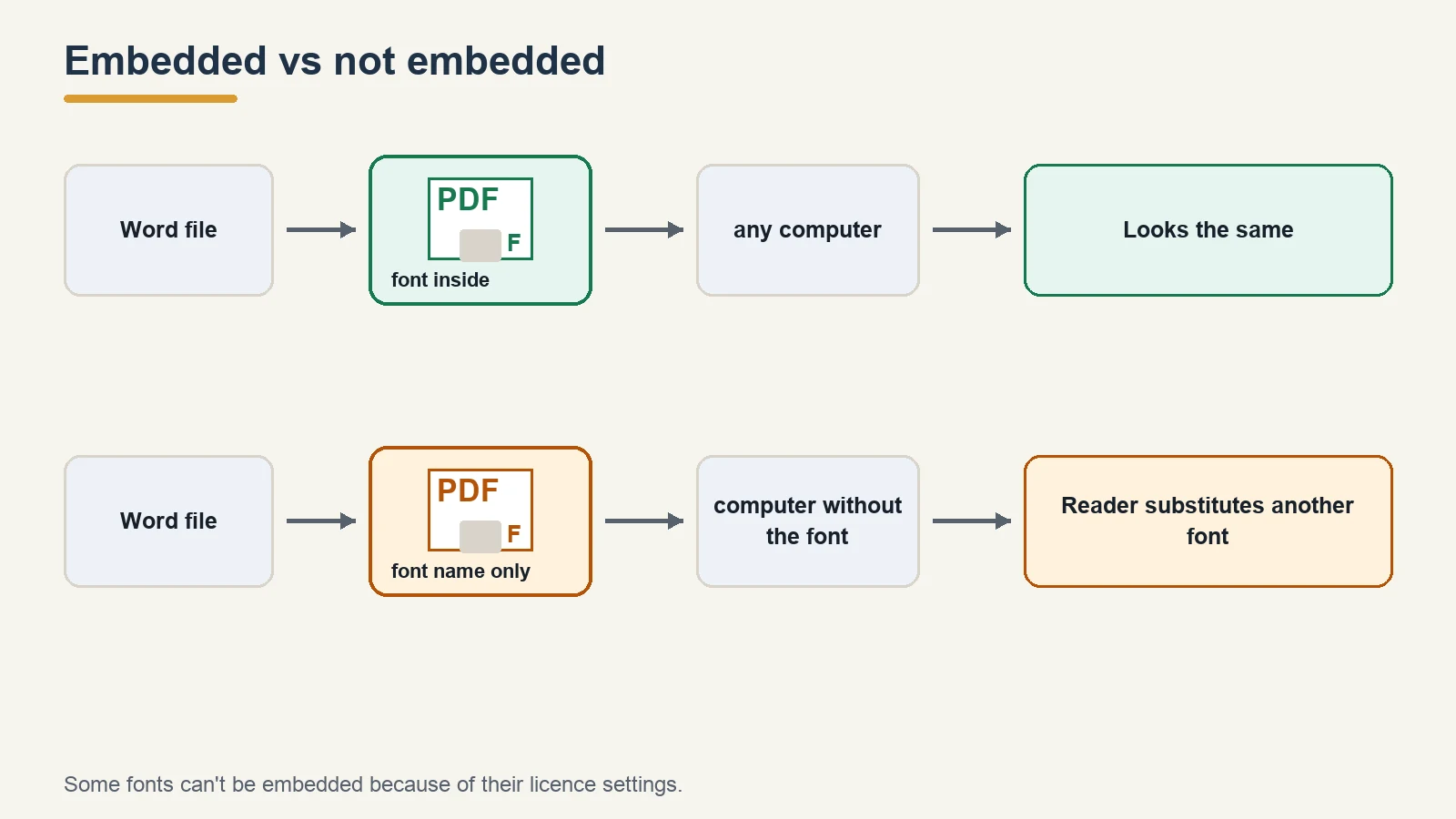
When a font isn't embedded, the PDF only records the font's name. The reader then has to find that font on the computer it's running on. If it can't, it uses something else. Microsoft says this directly in its guide to saving as PDF: "If this option isn't selected and the file uses a font that can't be embedded, then the PDF reader might substitute another font."
That substitution is the "font changed" you're seeing. The replacement font has different letter widths, so lines break in different places, and pages can shift.
Four reasons a font doesn't get embedded
1. The font's licence doesn't allow embedding
Font files carry a setting that says whether they may be embedded in documents. Microsoft's support article on embedding fonts says: "Not all TrueType fonts can be embedded." It explains that font creators can set embedding permissions: "Non-embeddable, Preview/Print, Editable, and Installable."
The OpenType specification, published by Microsoft, defines these permissions in the font file itself. For example, a font set to Restricted License embedding "must not be modified, embedded or exchanged in any manner" without permission from the owner. A font set to Preview & Print embedding may be embedded, but only "temporarily loaded on other systems for purposes of viewing or printing."
So if you've picked a font with restricted embedding, no setting in Word will put it into the PDF.
- Windows: open Control Panel, go to Fonts, select the font and look at Font embeddability.
- Mac: open Font Book, select the font and click the information button.
2. The font isn't installed on the computer doing the conversion
This one catches people who convert online, or who send a Word file to someone else to turn into a PDF. The conversion happens on a computer that may not have your font. Microsoft's PDF article notes that with its online conversion service on the Mac, "only fonts that Microsoft has the legal rights to can be used," and a custom font "is substituted with a legal one." It adds that this "can be avoided by embedding the fonts into the document."
The same applies to any converter that runs somewhere other than your own machine: it can only use fonts it has, or fonts you've embedded in the Word file.
3. "Bitmap text" was off for a font that can't be embedded
Word's PDF options include a box called Bitmap text when fonts may not be embedded. Microsoft describes it like this: "If fonts can't be embedded into the document, the PDF uses bitmap images of the text."
With this box ticked, text in a non-embeddable font is turned into a picture of the text, so it looks right. The trade-off is that a picture of text isn't real text: you can't select it, search it, or have it read aloud by a screen reader in the same way. With the box cleared, the text stays as text, but the reader may swap the font.
4. You used a cloud font or a font only you have
Microsoft's article mentions that Office cloud fonts "won't appear in this list" of fonts you can choose to embed. More generally, any font you installed yourself (a downloaded font, a brand font from your company) exists only on your machine and the machines you've installed it on. Anyone converting the document elsewhere won't have it.
How to fix it in Word
Step 1: Embed the fonts in the Word file
This helps when someone else, or an online service, will convert the file. In Word for Windows, Microsoft's steps are:
- Select File, then Options.
- In the left column, select Save.
- Under Preserve fidelity when sharing this document, select Embed fonts in the file.
Two more checkboxes appear:
- Embed only the characters used in the document. Microsoft says this "reduces the file size but limits editing of the file using the same font." If someone else will edit the text, leave it cleared. Microsoft's advice is that "it is better to embed all the characters in a font."
- Do not embed common system fonts. Microsoft's article describes how this option behaves in Word specifically; if you're not sure, read that section before changing it.
Microsoft also notes that "embedding custom fonts into your document does help with the online conversion to pdf files." Word for Microsoft 365 for Mac supports embedding fonts too.
Step 2: Save as PDF with the right options
In Word for Windows: File > Save As (or Save a Copy), choose a location, set the file type to PDF, then select More options > Options before you save. Two settings matter for fonts:
- Bitmap text when fonts may not be embedded. Tick it if a font can't be embedded and the look matters more than searchable text.
- ISO 19005-1 compliant (PDF/A). Microsoft describes PDF/A as "an archiving standard" that helps ensure a document "will look the same when it's opened later on a different computer." Archive-type PDFs are expected to carry their fonts, so this is worth ticking for documents you need to keep.
If you'd rather not deal with dialog boxes, our Word to PDF converter handles the conversion for you. Embedding fonts in the Word file first (Step 1) gives any converter the best chance of keeping your fonts.
Step 3: If a font can't be embedded, change the font
If the font's permission is "Non-embeddable" or restricted, the honest fix is to switch to a font that allows embedding. Check the Font embeddability field described above before you settle on a font for documents you'll share as PDFs.
How to check the PDF before you send it
Open the PDF and look closely at headings, symbols and any special characters. Then check the font list: most PDF readers show the fonts in a document in its properties window, and mark which ones are embedded. If a font you used isn't listed as embedded, go back to the steps above.
A quick visual test also helps. Open the PDF on a different computer or phone. If it looks the same there, your fonts travelled with it.
Related problems
Fonts aren't the only thing that can shift during conversion. Our guide to converting Word to PDF without losing formatting covers images, tables and layout. And if embedding fonts makes your PDF bigger than you expected, see why your PDF is so large.
FAQ
Why does my PDF use a different font from my Word document?
The font usually wasn't embedded in the PDF, so the PDF reader substituted another one. Microsoft says that if a font can't be embedded and bitmap text is off, "the PDF reader might substitute another font."
How do I embed fonts when saving Word as PDF?
In Word for Windows, go to File > Options > Save and select Embed fonts in the file. Then save as PDF. If a font still can't be embedded, tick Bitmap text when fonts may not be embedded in the PDF options.
Why can't some fonts be embedded?
The font's creator can restrict embedding. Microsoft lists the permission levels as Non-embeddable, Preview/Print, Editable and Installable. On Windows you can see a font's setting under Control Panel > Fonts > Font embeddability.
What does "Bitmap text when fonts may not be embedded" do?
It turns text in a non-embeddable font into images of that text, so it looks the same. The text can then no longer be selected or searched as normal text.
Does PDF/A keep my fonts?
Word's PDF/A option produces an archiving-standard PDF intended to look the same on other computers later. It's a good choice for records, but it can't override a font whose licence forbids embedding.
Sources
| Source | URL | Checked |
|---|---|---|
| Microsoft Support, Benefits of embedding custom fonts | https://support.microsoft.com/en-us/office/fonts/benefits-of-embedding-custom-fonts | 20261030 |
| Microsoft Support, Save or convert to PDF or XPS in Office desktop apps (Word section) | https://support.microsoft.com/en-us/office/collab-files/save-or-convert-to-pdf-or-xps-in-office-desktop-apps | 20261030 |
| Microsoft Typography, OpenType specification, OS/2 table, fsType | https://learn.microsoft.com/en-us/typography/opentype/spec/os2#fstype | 20261030 |