How to Convert PDF to Word and Keep Tables Intact
You open a PDF in Word, and the text looks fine, but the table is a mess. Columns have slid into each other, some rows are now separate text boxes, and the borders float on their own. You didn't do anything wrong. The problem starts with what a PDF actually is.
This guide explains why tables break, how to tell before you convert whether a PDF will come through cleanly, and a repair routine for when it doesn't.
Why tables break: a PDF has no idea it contains a table
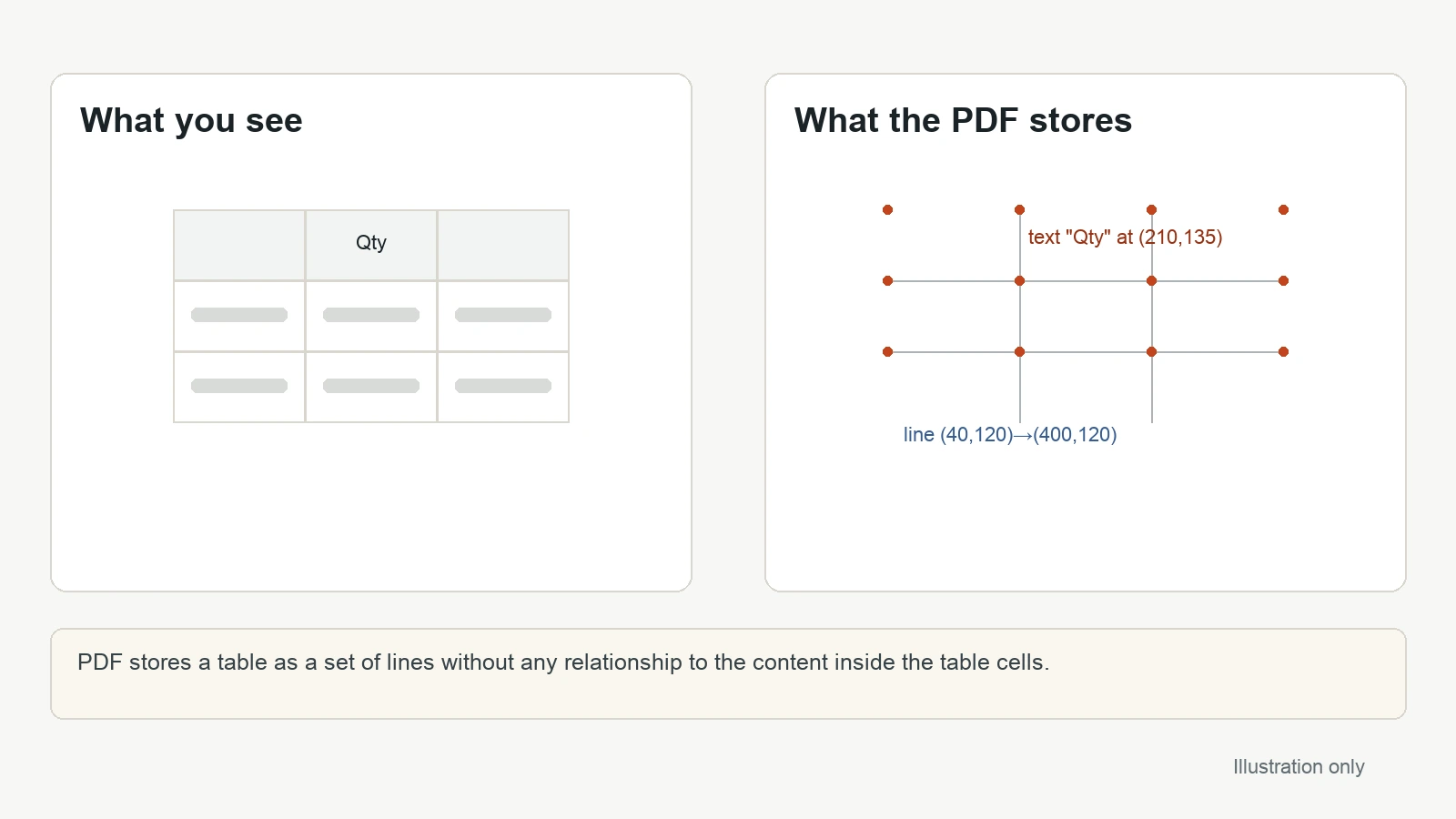
Microsoft's own help page on opening PDFs in Word puts it plainly: "PDF is a fixed file format, which means the file stores the location of text, pictures, and vector graphics on a page, but not necessarily the relationships among them." It goes on: "Most PDFs don't include information about structural content elements, such as paragraphs, tables, or columns. For example, PDF stores a table as a set of lines without any relationship to the content inside the table cells."
That's the whole story in two sentences. When you see a neat grid in a PDF viewer, the file is really saying "draw a line from here to here" and "put the word Qty at these coordinates". Nothing links that word to the cell it sits in.
So when Word opens a PDF, it has to guess. In Microsoft's words, "Word uses a system of complex rules to figure out what Word objects (like headings, lists, tables, etc.) best represent the original PDF and where to put those objects in the Word document." Most of the time the guess is good. When it isn't, the table is usually what suffers first.
Which PDFs convert well (and which don't)
Before you spend time on a conversion, look at what kind of PDF you have.
Good candidates
Microsoft says conversion "works best with files that are mostly text—for example, business, legal, or scientific documents." A PDF that was exported from Word or another word processor, with ordinary tables and selectable text, usually comes back close to the original.
Likely trouble
The same page lists elements "known to be problematic when converting from PDF to Word format." The ones that matter most for tables and layout:
- Tables with cell spacing (gaps between cells, rather than shared borders)
- Page colors and page borders
- Frames
- Footnotes that span more than one page, and endnotes
- Font effects such as Glow or Shadow (these turn into graphics)
There are two other warning signs. If the PDF is mostly charts or graphics, "the whole page might show up as an image," and then the text can't be edited. And if Word misses an element such as a footnote, it may treat it as regular text in the wrong place.
Quick test: open the PDF in any viewer and try to select a single word inside the table. If you can't select text at all, the page is an image (often a scan), and you'll need OCR before any Word conversion can produce a real table.
Step 1: Convert the PDF with Word
If you have Word for Microsoft 365, Word 2024, 2021, 2019 or 2016, you can convert directly:
- Open Word and open the PDF from File > Open, the same way you'd open a document.
- If Word shows a message that it's about to convert the PDF into an editable document, confirm. (Word makes a copy of the PDF and converts that.)
- Save the result straight away as a new .docx file.
Your original PDF isn't changed. As Microsoft notes, "You always have the original PDF file, in case you don't want to keep the version that Word converts."
If you only need to read the PDF, don't convert it. Microsoft's advice is to open it directly where it's stored instead.
Step 2: Check the table before you edit anything
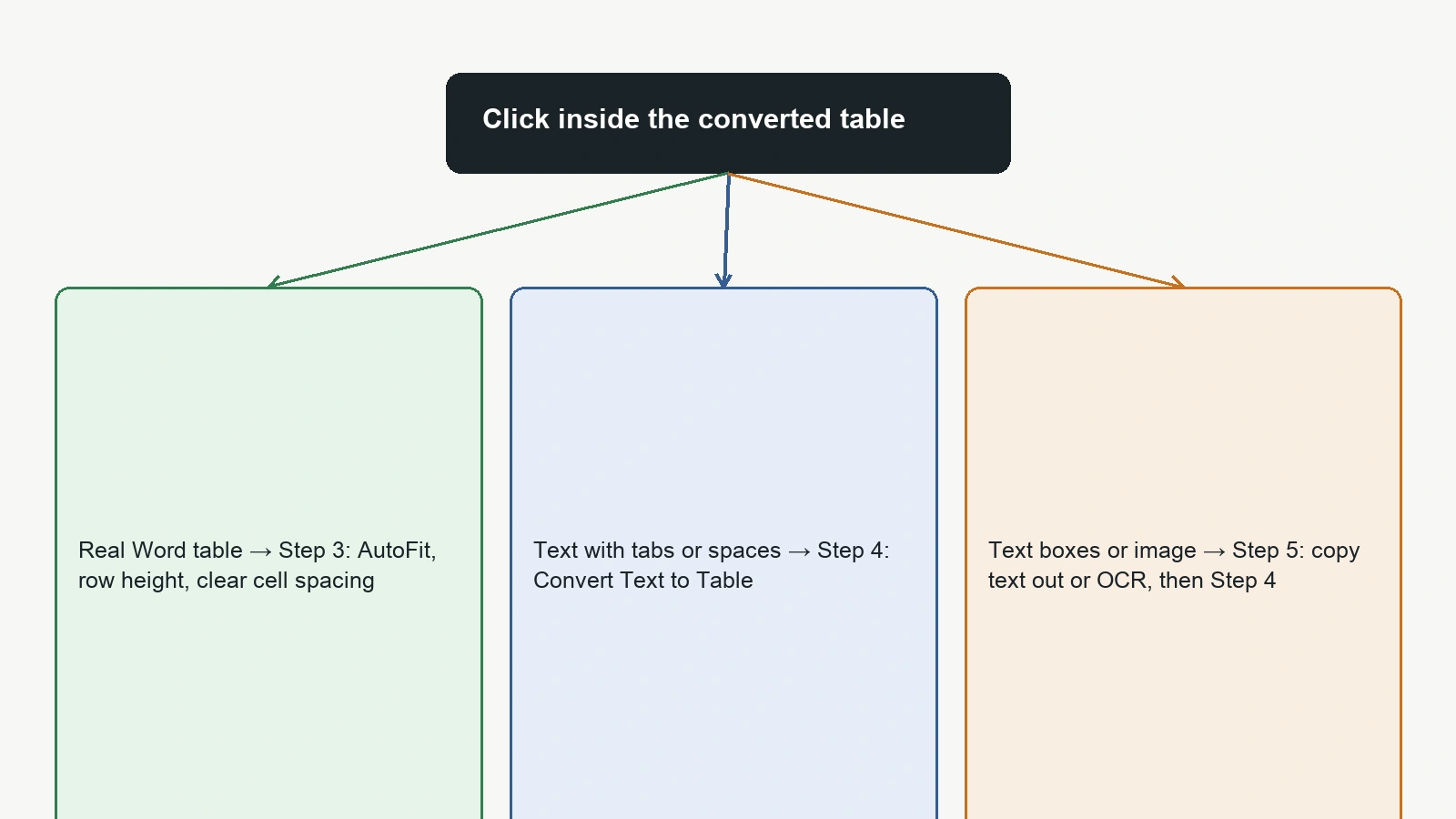
Turn on formatting marks (the ¶ button on the Home tab) and click inside the table. You're looking for one of three outcomes:
- A real Word table. Clicking inside shows the table move handle in the top-left corner and the Table Design / Layout tabs appear. Good: go to Step 3.
- Text separated by tabs or spaces. Text lines up, but there's no table; you see tab arrows or runs of spaces. Go to Step 4.
- Text boxes or an image. Each cell is a floating box, or the whole table is one picture. Go to Step 5.
Step 3: Tidy a real table
When Word did recognise the table but it looks off:
- Click in the table, open the Table Layout tab, and in the Cell Size group choose AutoFit > AutoFit Contents to fit each column to its text, or AutoFit Window to resize the whole table automatically.
- If rows have uneven heights, select the rows, right-click, choose Table Properties, and on the Row tab select Specify height and enter a size.
- Cell spacing from the original often comes through badly. In Table Properties, on the Table tab, click Options; under Default cell spacing, clear Allow spacing between cells if it's set.
- Re-apply borders from Table Design > Borders instead of fixing each line by hand.
Step 4: Rebuild a table from tab-separated text
If the content survived but the structure didn't:
- Make sure each row is on its own line and the cells are separated by a single tab. Use Find and Replace to collapse runs of spaces or double tabs.
- Select those lines.
- Go to Insert > Table > Convert Text to Table. Under Separate text at, choose tabs, and under Table size, check the number of columns Word suggests.
- Apply a table style, then fix any cell that landed in the wrong column.
This sounds slow, but for a 20-row price list it's usually quicker than retyping.
Step 5: When the table came through as boxes or an image
Text boxes and pictures can't be turned into a table directly.
- If the text inside the boxes is editable, copy it out row by row into a plain document, separate cells with tabs, and use Step 4.
- If the table is an image, the text needs OCR first. Once you have the text, Step 4 applies.
If only one or two pages are a problem, it can be easier to pull those pages out, fix them separately, and put the document back together. Our guide on extracting specific pages from a PDF and the Split PDF and Merge PDF tools help with that.
If the converted text comes out as gibberish
Sometimes the problem isn't the table at all: Word opens the PDF and the text is unreadable or can't be edited. Microsoft explains that "different programs represent the same content using different structures in PDF files", which can include invisible text and different text boundaries, and "you can't see those differences when you look at the PDF in a reader." So a PDF that looks perfect on screen can still convert badly. If the page is really a picture, such as a scan or a page that's mostly graphics, Word has no text to work with: run OCR first, for example with OneNote's Copy Text from Picture, then paste the text into Word and check it, because recognition "depends on the quality of the image". For PDFs with elements that don't convert well, Microsoft's advice is to open the PDF directly rather than converting it.
Going the other way
Once the document is fixed, you'll probably want to send it out as a PDF again. Our Word to PDF converter handles that, and Convert Word to PDF Without Losing Formatting covers the settings that keep fonts and layout stable.
A small habit that saves time next round: keep the .docx as your master copy. Editing the source and exporting a fresh PDF is always cleaner than converting PDF to Word again.
FAQ
Why does my PDF table turn into separate text boxes in Word?
A PDF stores a table as lines and positioned text, not as rows and cells. When Word can't confidently match the pieces into a table, it keeps them where they were on the page, often as separate boxes.
Can I convert a scanned PDF to Word with working tables?
Not directly. A scanned page is an image, and Microsoft notes that pages that are mostly graphics may come through as an image that can't be edited. Run OCR first, then rebuild the table from the text.
Will converting change my original PDF?
No. Word makes a copy and converts that; the original PDF file stays as it was.
What kind of PDF converts best?
Mostly-text documents such as business, legal or scientific papers, ideally exported from a word processor so the text is selectable.
Sources
| Source | URL | Checked |
|---|---|---|
| Microsoft Support, "Opening PDFs in Word" | https://support.microsoft.com/en-us/word/opening-pdfs-in-word | 20261026 |
| Microsoft Support, "Resize a table, column, or row" (AutoFit Contents / AutoFit Window; Allow spacing between cells) | https://support.microsoft.com/en-us/word/resize-a-table-column-or-row | 20261027 |
| Microsoft Support, "Set or change table properties" (Table Properties > Row; Table > Options) | https://support.microsoft.com/en-us/office/security-privacy/set-or-change-table-properties | 20261027 |
| Microsoft Support, "Convert text to a table or a table to text" (Insert > Table > Convert Text to Table) | https://support.microsoft.com/en-us/word/convert-text-to-a-table-or-a-table-to-text | 20261027 |
| Microsoft Support, "Copy text from pictures and file printouts using OCR in OneNote" | https://support.microsoft.com/en-us/office/copy-text-from-pictures-and-file-printouts-using-ocr-in-onenote-93a70a2f-ebcd-42dc-9f0b-19b09fd775b4 | 20261027 |
Related posts
How to Merge Scanned PDFs in the Right Order
Scanned pages out of order? Number the files so the order is clear, check the list, fix stray pages, then merge them into one PDF in your browser.
PDF TipsWhat Makes a PDF File So Large? We Took One Apart
One phone photo turned our 64.7 KB report into a 29.9 MB PDF, past Gmail's 25 MB limit. What's inside a large PDF, and how to make it fit an email.
PDF TipsHow to Convert Word to PDF Without Losing Formatting
Why Word documents change when saved as PDF (mostly fonts and complex layouts), plus the Word settings and checks that keep your PDF looking like the original.