How to Convert Word to PDF on iPhone and Android
Someone sends you a Word document, and you need to pass it on as a PDF. You're on your phone. There's no laptop nearby. Can you do it from there?
Yes, and there's more than one way. Below are the steps for the Microsoft Word app on iPhone and Android, Apple's Pages app for an iPhone without Word, and a browser-based option. Every app step comes from Microsoft's or Apple's own help pages, checked on 1 November 2026. Apps change their menus from time to time, so if something looks a little different on your phone, the help page in the sources list is the place to check.
Which method should you use?
| You have... | Use |
|---|---|
| The Microsoft Word app | Word's own Export or Print option |
| An iPhone without Word | Apple's Pages app |
| A .docx file and a browser | Our online converter |
Option 1: The Microsoft Word app
Microsoft's help page "Save a PDF of your file on your mobile device" opens with: "You can use the Print option to save your Word documents, Excel workbooks, and PowerPoint presentations as PDF files." The exact steps differ between iPhone and Android.
Word on iPhone
Microsoft's steps for iOS are short:
- "Open the file."
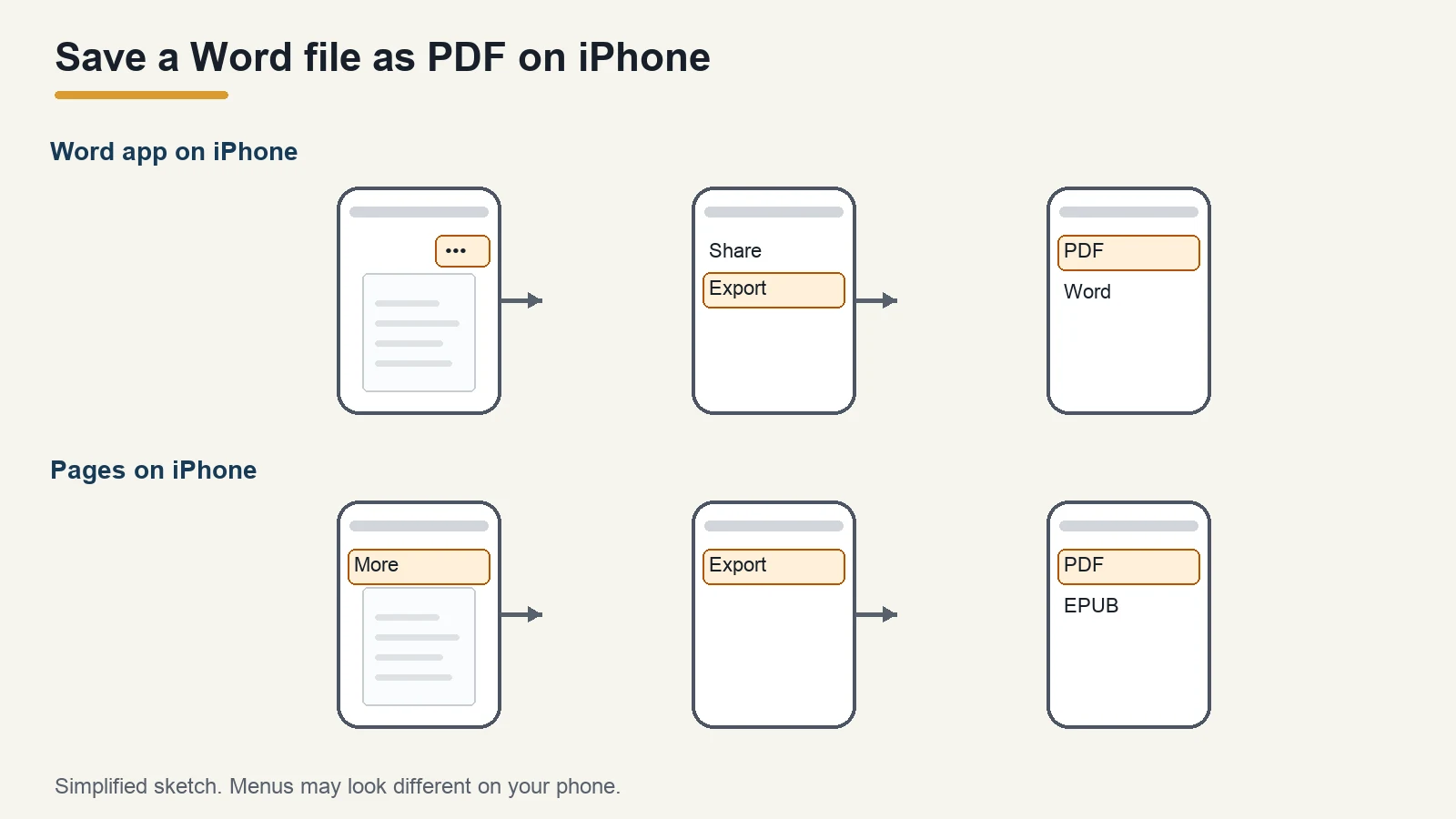
- "Tap on the 3 dots icon, and click Export."
- "Select PDF, and save your file on the desired location."
Word on Android
On Android, Microsoft's route goes through Print:
- "Open the file that you want to save as a PDF, and then tap File on the 3 dots icon on your phone."
- "Then, tap Print."
- "Click on Select a printer, and then chose Save as PDF."
- "Click on the PDF icon, choose a location for your PDF, enter a new name (optional), and then tap Save."
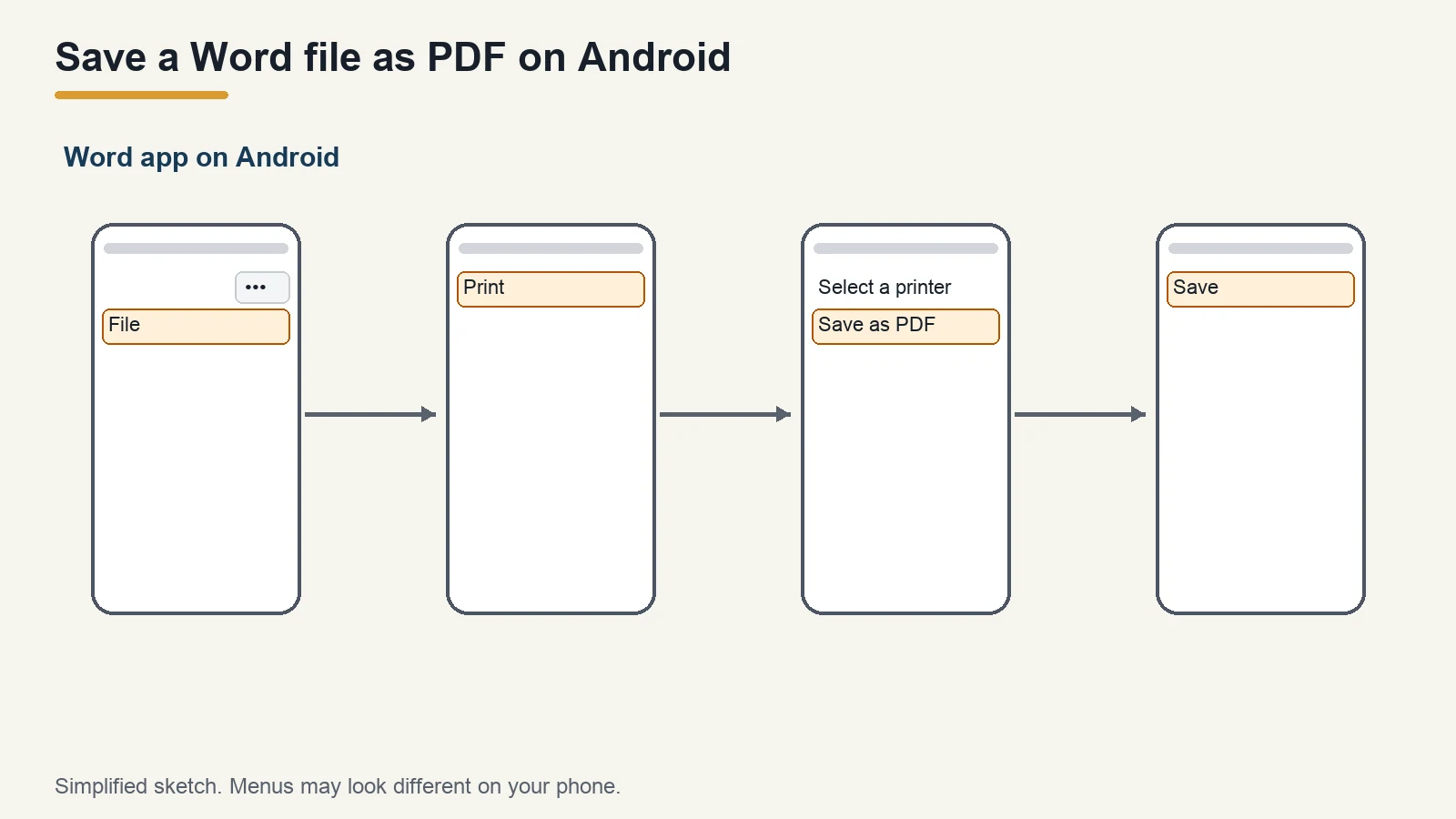
With this route, Word itself makes the PDF, so no second app has to open the file first. If fonts look different in the result, see our guide to why fonts change when you convert Word to PDF.
Option 2: iPhone without Word, using Pages
Apple's Pages app can open Word files. Apple's Pages guide for iPhone says: "You can also open and edit Microsoft Word documents (files with a .doc or .docx filename extension) and text documents (files with a .rtf or .txt filename extension) in Pages, then save them as Pages or Word documents, or in PDF or EPUB formats."
Once the document is open in Pages, Apple's steps to save it as a PDF (from the Pages User Guide for iPhone, which covers Pages 15.4) are:
- "Go to the Pages app on your iPhone."
- "Open the document you want to save in another format."
- Tap the More button in the toolbar, tap Export, then choose PDF.
- "Tap one of the options for sending, saving, or posting the document."
- "Choose a location, or provide the requested information (an email address if you're sending an email, for example), then send or post the copy."
Apple also notes: "If the original file has a password, it applies to copies exported in PDF and Word formats."
One thing to keep in mind: Pages isn't Word, so look through the PDF before you send it, especially if the document has complex tables or unusual fonts.
Option 3: Convert in your browser
If you'd rather not install anything, our Word to PDF converter works in a web browser. A few things to know first:
- It only accepts .docx files (Word 2007 and later). If you have an older .doc file, it needs to be saved as .docx first.
- Files can be up to 25 MB. Most of a Word file's size usually comes from its pictures.
- Your file isn't uploaded to our server. The conversion runs in your browser, on your own device.
The steps: open the converter, tap the upload area and pick your .docx file, tap Convert to PDF, then tap Download.
Before you send the PDF
Whichever method you use, open the PDF and look through it once:
- Page breaks and layout: do headings, tables and images sit where they should?
- Fonts and symbols: has anything turned into a different font or a box?
- Page count: a different page count usually means something moved.
If the layout has shifted, our guide to converting Word to PDF without losing formatting covers the usual causes.
FAQ
Can I convert Word to PDF on my iPhone for free?
Microsoft's Word app has an Export to PDF option, and Apple's Pages app can open Word files and export them as PDF. Our browser-based converter also accepts .docx files up to 25 MB.
How do I save a Word document as PDF on Android?
In the Word app, Microsoft's steps are: open the file, tap File on the three-dots icon, tap Print, choose Select a printer, then Save as PDF, and save.
Why is there no PDF option in Word's Save As on my phone?
On Android, Microsoft's help page uses the Print option to make a PDF, not Save As. Follow the Print steps above.
Can I convert an old .doc file on my phone?
Apple says Pages can open .doc and .docx files. Our online converter accepts only .docx, so a .doc file needs to be saved as .docx first.
Is my document uploaded when I use docwhip's converter?
No. The conversion runs in your browser, and the file isn't uploaded to our server.
Sources
| Source | URL | Checked |
|---|---|---|
| Microsoft Support, Save a PDF of your file on your mobile device | https://support.microsoft.com/en-us/word/save-a-pdf-of-your-file-on-your-mobile-device | 20261101 |
| Apple Support, Pages User Guide for iPhone, Open a document in Pages on iPhone | https://support.apple.com/guide/pages-iphone/open-a-document-tancdeedb11c/ios | 20261101 |
| Apple Support, Pages User Guide for iPhone (Pages 15.4), Convert to Word, PDF, or another file format | https://support.apple.com/guide/pages-iphone/export-to-word-pdf-or-another-file-format-tance1161f26/ios | 20261101 |